
Notification Component – Real-Time Message Alerts in Salesforce
Modern teams live in Salesforce: updating records, working cases, tracking opportunities, and reviewing dashboards. At the same time, customers are messaging across channels like SMS and WhatsApp, expecting fast replies and consistent experiences.
Without a central alerting system, new messages can easily be missed or seen too late. Agents are forced to constantly refresh the inbox or switch between multiple tools just to stay updated.
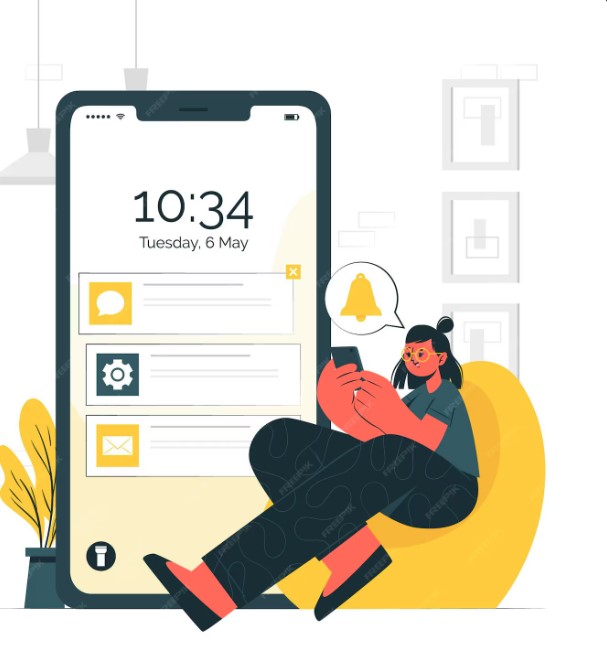
The Notification Component solves this problem with real-time pop-up alerts inside Salesforce. It keeps agents informed about new inbound messages the moment they arrive, so no conversation falls through the cracks.
What Is the Notification Component?
The Notification Component is a lightweight, Salesforce-native utility that monitors your Force Message channels and surfaces instant alerts whenever new messages arrive.
It lives in Salesforce’s Utility Bar, giving users a persistent place to:
- See real-time pop-ups for inbound messages
- Hear sound notifications when new messages arrive
- Filter alerts by channel (SMS, WhatsApp, etc.)
- Mark items as Read/Unread
- Star important messages
- Jump directly into the Chat UI or Message Inbox to respond
Because it’s integrated with Salesforce, the component respects your user permissions and channel assignments, ensuring agents only see the messages that are relevant to them.
Why Real-Time Notifications Matter
Customer expectations keep rising. Delayed responses can lead to:
- Lost deals
- Frustrated customers
- Lower satisfaction scores
- Missed upsell or cross-sell opportunities
Real-time notifications help teams:
- Respond faster – agents see and acknowledge new messages within seconds.
- Reduce manual monitoring – no need to constantly refresh message views.
- Stay focused – users can work on records and dashboards while the component watches for new conversations in the background.
- Improve accountability – read/unread and starred states make it clear what has been handled and what still needs attention.
Key Highlights at a Glance
You can build a two-column “feature highlight” section in Elementor, but here’s the content:
Core Capabilities
- Real-time incoming message pop-ups
- Sound notifications with adjustable volume
- Channel-based filters (SMS, WhatsApp, others)
- Mark as Read or Unread
- Star messages to save as favorites
- Automatically routes messages into the Inbox
- Respects Admin, Power, and Normal user roles
- Shows only messages from channels assigned to the logged-in user
Agent Experience
- Clear visual alerts for new conversations
- One-click navigation to full chat or related record
- Personal control over sound and visibility
- Lightweight UI that doesn’t interrupt existing work
How the Notification Component Works
- Message Arrives
A customer sends a message via SMS, WhatsApp, or another configured channel. - Routing & Matching
Force Message processes the message, associates it with the correct Contact, Lead, Case, or other record, and logs it in Salesforce. - Notification Triggered
The Notification Component listens for new inbound messages tied to the channels assigned to the logged-in user. When a match is found, it immediately raises a pop-up alert. - User Interaction
From the notification, the user can:- Open the Chat UI Component to respond.
- Jump to the Message Inbox.
- Mark the notification as Read/Unread.
- Star the message for later follow-up.
- Inbox & History
Once handled, the message is stored in the Inbox and related records, preserving a complete history for reporting and compliance.
Inside the Notification Panel
When users open the component in the Utility Bar, they see a clean, organized list of recent alerts. Each entry typically shows:
- Sender name or number (Contact or Lead if matched)
- Channel icon (e.g., SMS, WhatsApp)
- Message preview – first few words of the inbound message
- Time received
- Status indicator – Read vs Unread
- Star icon – for important items
Agents can quickly scan this list to understand what needs attention and in what order.
Working with Read / Unread States
Read/unread behavior turns the notification list into a personal action queue:
- Unread notifications appear bold and stand out visually.
- Once an agent opens a conversation or decides no action is needed, they can Mark as Read.
- If they need to return later, they can Mark as Unread to keep it visually flagged.
This simple mechanism helps agents track what’s in progress versus what’s done.
Using Stars to Flag High-Priority Messages
Not all messages are equal. Some are time-sensitive, tied to key accounts, or require escalation.
The Star feature lets agents highlight these messages:
- Click the star icon on any notification to mark it as a favorite.
- Use filters or sorting (if configured) to quickly find Starred items.
- Build workflows around starred messages, such as follow-up tasks or escalations.
Channel-Based Filtering
Many teams serve multiple channels from the same workspace. To prevent overload, users can filter notifications by channel:
- All Channels – see everything.
- SMS Only – for text-heavy teams.
- WhatsApp Only – for markets where WhatsApp is the primary channel.
- Additional channels as your org enables them.
Channel filters allow specialists to focus on their primary work while still having access to other channels when needed.
Sound Notifications and Personal Preferences
Visual pop-ups are powerful, but they’re even more effective with optional sound alerts:
- When enabled, a short sound plays as new messages arrive.
- Users can adjust the volume to suit their environment.
- Admins can define global defaults and decide whether users can override them.
This combination keeps agents informed whether they’re actively watching the screen or not.
Security and User-Scoped Visibility
The Notification Component is designed with access control in mind:
- It only displays messages from channels assigned to the logged-in user.
- It respects Salesforce permissions, profiles, and any Force Message channel assignment rules.
- Admins can configure which users act as Admins, Power users, or Normal users, tailoring what each group can see and do.
This ensures that sensitive customer communication is visible only to the right people.
Example: A Day in the Life of an Agent Using Notifications
- An agent logs into Salesforce and starts working through open Cases.
- The Notification Component sits ready in the Utility Bar.
- A customer responds to an SMS about a billing issue.
- The agent hears a soft alert and sees a pop-up:
- “John Smith – SMS – ‘Hi, I have a question about my latest invoice…’”
- The agent clicks the notification, which opens the Chat UI on John’s record.
- They reply immediately, resolving the question.
- The agent marks the notification as Read, and the conversation is stored in the Inbox and on the Case.
All of this happens without the agent ever leaving Salesforce or manually refreshing any list.
Implementation Overview for Admins
At a high level, enabling the Notification Component involves:
- Adding the component to the Utility Bar for the relevant Lightning apps.
- Configuring channel assignments so users see only the right messages.
- Setting role-based behavior for Admin, Power, and Normal users.
- Defining defaults for sound notifications and end-user preferences.
- Training agents on how to:
- Open the component
- Respond from notifications
- Use Read/Unread and Starred states
For a deeper configuration walkthrough, you can create a follow-up admin guide article (or link to your separate “Admin Guide – Configuring Notification Component” page).
Best Practices for Using the Notification Component
- Keep it open: Encourage agents to keep the Utility Bar component open during working hours.
- Use Unread as a to-do list: Treat unread notifications as items that still require action.
- Star smartly: Only star messages that are truly high priority, so your starred list stays meaningful.
- Monitor response times: Use Salesforce reports and dashboards to measure how quickly teams respond after a notification appears.
- Review channel assignments regularly: As teams change, update who sees which channels to avoid clutter and maintain security.
Conclusion
The Notification Component transforms Salesforce into a live messaging cockpit where agents never miss a message, even while juggling multiple tasks. With real-time pop-ups, sound alerts, channel filters, and simple tools like Read/Unread and stars, your team can stay responsive, organized, and focused—without leaving Salesforce.
Add it to your Knowledge Articles section as the dedicated page for “Notification Component”, and you’ll give users a clear, professional guide that matches the style of Mogli’s marketing-plus-education content.
 Previous Post
 Next Post